
×
July 22, 2026 |
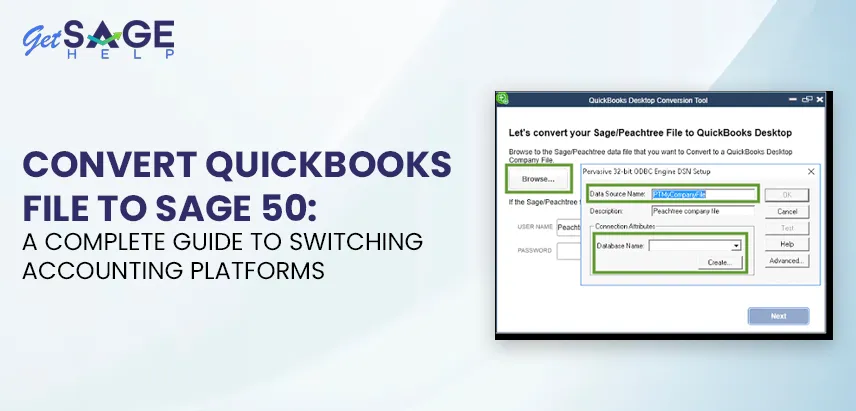
If you’re moving your company records from QuickBooks to Sage 50, you’re handling every part of your financial data — customers, vendors, chart of accounts, transaction history, and more. This guide explains the process, what to prepare beforehand, what transfers cleanly, and what usually needs a second look afterward.
You might be moving because Sage 50’s job costing and inventory tools fit your industry better, your accountant recommended the switch, or you’re consolidating systems after a merger. Regardless, the mechanics of data migration are similar. This article breaks the process into clear stages, so you know what to expect at each point.
QuickBooks and Sage 50 (formerly Peachtree) are both long-standing accounting platforms, but they’re built differently under the hood. QuickBooks organizes data around a single company file structure with a strong emphasis on ease of use. At the same time, Sage 50 is built around a more traditional, ledger-driven architecture that many accountants find familiar from older desktop accounting systems.
Common reasons businesses make this move include:
None of these reasons make one platform better than the other — they are different tools for different workflows. What matters is that once you decide to move, the data must travel from one system’s format to another’s, and a structured approach pays off.
When users talk about moving a file from one accounting platform to another, they mean a translation process. QuickBooks stores data in its proprietary file format (.QBW for working files, .QBB for backups), and Sage 50 uses a different database structure. There is no direct “open in Sage” option for a QuickBooks file because the two systems use different internal languages.
Because of that, the process relies on one of the following approaches:
Which approach makes sense depends heavily on the size of your file and how many years of history you need. It also matters whether you require full transaction-level detail or just accurate opening balances going forward.
A clean conversion starts before any data moves. Rushing export and import steps without preparation is the biggest cause of mismatched balances afterward.
Decide if you need every transaction from the last five years or if accurate opening balances as of a cutoff date will serve your reporting needs. Many businesses choose a fiscal year-end or quarter-end as their cutover point, bringing over summarized balances instead of every historical invoice and bill.
Before exporting data from QuickBooks, run a cleanup pass:
Create a full backup of your QuickBooks company file and store it separately from your working system. You will need this as a reference throughout the process and as a fallback if anything must be re-pulled later.
Sage 50 requires certain fields in specific formats. Account numbers often follow a numbering convention (assets starting with 1, liabilities with 2, etc.) that QuickBooks does not enforce the same way. Reviewing Sage 50’s chart of accounts numbering structure ahead saves rework later.
Whoever manages your books should be involved early. They will verify opening balances, confirm which reports must match pre- and post-migration, and flag accounts needing special handling (like loans, fixed assets, or payroll liabilities).
The table below provides a condensed view of the QuickBooks to Sage 50 migration process.
| Stage | What Happens | Output | Who’s Involved |
| Assessment | Review file size, history needed, and complexity | Migration plan and cutover date | Business owner, accountant |
| Cleanup | Reconcile accounts, remove duplicates, tidy lists | A clean QuickBooks file ready for export | Bookkeeper |
| Backup | Full backup of the QuickBooks company file | .QBB backup file stored securely | IT or business owner |
| Export | Pull lists and balances out of QuickBooks | CSV/Excel files by list type (customers, vendors, chart of accounts, items) | Bookkeeper or conversion tool |
| Mapping | Match QuickBooks fields to Sage 50 fields | A field-mapping reference document | Bookkeeper, accountant |
| New Company Setup | Create the Sage 50 company shell with correct settings | Empty Sage 50 company file with fiscal year and posting method set | Business owner or Sage 50 administrator |
| Import | Bring mapped data into Sage 50 in the correct order | Populated Sage 50 lists and opening balances | Bookkeeper or conversion tool |
| Verification | Compare trial balances, spot-check transactions | A confirmed match between old and new systems | Accountant |
| Parallel Run (optional) | Run both systems briefly to confirm consistency | Side-by-side reports for a transition period | Bookkeeper |
| Cutover | Retire the QuickBooks file as the system of record | Sage 50 becomes the active accounting system | Entire team |
This sequence is not rigid. Smaller files with limited history might skip the parallel run stage. Larger, multi-year files often benefit from running both systems side by side for a month before fully switching.
Let us guide you through the detailed steps of moving your data.
Start with your master lists rather than transactions. In QuickBooks, you can export the following through the Reports menu or List export options:
Export each as a separate file. Combining everything into one spreadsheet often creates more mapping confusion than it saves.
Finally, check the files to confirm all records are complete.
Your chart of accounts is the backbone of everything else. It should be the first thing you build in Sage 50. Assign account numbers according to Sage 50’s numbering conventions and match each account type (asset, liability, equity, income, expense) carefully. Mismatched account types are a common source of skewed financial statements after migration.
Once the chart of accounts is ready, bring in your customer and vendor lists using Sage 50’s import utility.
Finally, check the import log for records that might have been skipped.
Here are some things to pay attention to:
If your business tracks inventory, pay particular care in this step. Sage 50 handles item costing methods (FIFO, LIFO, average cost) differently from QuickBooks in some configurations. Confirm your costing method before importing quantities and values, not after.
For each account, the opening balance in Sage 50 must match your QuickBooks Trial Balance as of the cutover date. Most reconciliation issues surface here, so budget extra time instead of rushing.
If you need line-item detail for past invoices, bills, or journal entries (for audit or reporting), you can import them through Sage 50’s transaction import templates. Alternatively, use a specialized conversion tool built for transaction-level migration.
If you only need summarized history, attaching PDF reports from QB as reference documents is often sufficient.
Payroll data does not transfer cleanly between platforms because tax tables, year-to-date figures, and liability accounts are structured differently. Most businesses set up payroll fresh in Sage 50 from the current quarter and keep QuickBooks payroll history archived for reference instead of migrating it directly.
Run a Trial Balance in Sage 50. Compare it line by line against your final QuickBooks Trial Balance. Spot-check some customer balances, vendor balances, and inventory quantities against the source file. Do not consider the migration complete until these numbers match.
Here is what transfers without issues and what might require review or rework so you know where to look.
Here is what often transfers with minimal issues:
The following might need manual review or rework:
Knowing this list ahead helps you set realistic expectations with your team about how much manual cleanup to budget after the technical import.
There are common issues you can encounter when converting a QuickBooks file to Sage 50.
This usually traces to a cutover date mismatch. Transactions dated after your cutover may have been included or excluded inconsistently between the two exports. Re-check that both your QuickBooks Trial Balance and Sage 50 opening entries reference the same date.
Confirm that the costing method in Sage 50 matches the assumption used when you calculated your QB item values. A FIFO-to-average-cost mismatch, for example, can throw off inventory asset totals even when quantities are correct.
This happens when a list was imported more than once or when a customer existed under slightly different names in QuickBooks (a common issue with businesses that did not enforce consistent naming). A cleanup pass on the customer list before export helps avoid this.
As noted earlier, most businesses handle payroll as a fresh start in Sage 50 rather than migrating year-to-date figures directly, which sidesteps this issue entirely.
For a small file with limited history, a business owner or bookkeeper comfortable with spreadsheets can often manage this process independently, especially if the export-and-map approach is used carefully and verified at each stage.
For larger files, multi-year history, complex inventory, or payroll data, many businesses bring in an accountant experienced with both platforms or use a specialized conversion utility built to interpret QuickBooks’ file structure. The right choice depends on your file’s complexity, downtime tolerance, and your team’s accounting expertise.
Whichever route you choose, the preparation and verification steps above remain the same. They determine whether your new Sage 50 file is trustworthy from day one.
Once your data is in and verified, give your team time to adjust to Sage 50’s interface and workflow before fully retiring QuickBooks. A short parallel run of a few weeks, entering transactions in both systems, can catch discrepancies you might otherwise miss until month-end reporting.
Schedule a follow-up review with your accountant about 30 to 60 days after cutover, once you have closed a full reporting period in Sage 50. This provides a real-world check that reports, tax calculations, and reconciliations behave as expected before you archive your QuickBooks file.
To convert QuickBooks file to Sage 50 is a project worth taking seriously. It is not technically difficult, but the accuracy of your financial records depends on getting each stage right. The process involves cleanup, export, mapping, import, and verification. Make sure not to rush any stage, as it can create work later in the form of reconciliation headaches during your first Sage 50 month-end close.
Moreover, take time to prepare your QuickBooks file, and involve your accountant early. Verify your numbers before fully retiring your old system. If done carefully, the switch will provide you with a clean, accurate starting point in Sage 50 and will not carry forward errors or inconsistencies from your previous setup.
For any queries or real-time assistance, speak to live professionals at Get Sage Help.
No, the two platforms use incompatible file formats. So, a QuickBooks company file can’t simply be opened in Sage 50. You need to export, map, and import data using Sage 50’s own import tools. Some conversion utilities streamline this, but a direct “open” function doesn’t exist.
That depends on your reporting and audit needs. Many businesses migrate only opening balances as of a cutover date, rather than every historical transaction. If you need full detail for past years, keep your QBDT backup accessible for reference even after switching. A hybrid approach often balances effort and usefulness well.
Quantities often transfer well if your item list is clean before export. Values depend on matching costing methods between the two systems, so confirm that FIFO, LIFO, or average cost settings align before importing. Mismatches can be a common source of inventory discrepancies after migration.
Payroll often does not migrate cleanly because tax tables and year-to-date figures are structured differently across platforms. Most businesses start payroll fresh in Sage 50 from the current quarter or year. QuickBooks payroll history stays archived for reference rather than imported directly.
Timing depends on file size and complexity, ranging from a single day for a small, clean file to several weeks for a large, multi-year dataset. Preparation and verification usually take longer than the technical import itself. Allowing extra time for reconciliation checks is almost always worthwhile.
Smaller, well-organized files can often be managed by a business owner or bookkeeper using a structured export-and-import process. Larger or more complex files often benefit from an accountant’s involvement or a specialized conversion tool. The best choice depends on your file’s complexity and your team’s comfort with both platforms.
Your QuickBooks file doesn’t disappear. It’s good practice to keep a final backup indefinitely for historical reference and audit purposes. Once you’ve verified Sage 50 is accurate, QB will stop being your active system of record. Many businesses keep read-only access for a year or two just in case older reports are needed, as they often are.

Prefer speaking with a human to filling out a form? call corporate office and we will connect you with a team member who can help.
 +1(877)204-4803
Available 7 Days a Week 8:00 am - 10:00 pm (EST)
Chat with an Expert