
×
July 23, 2026 |
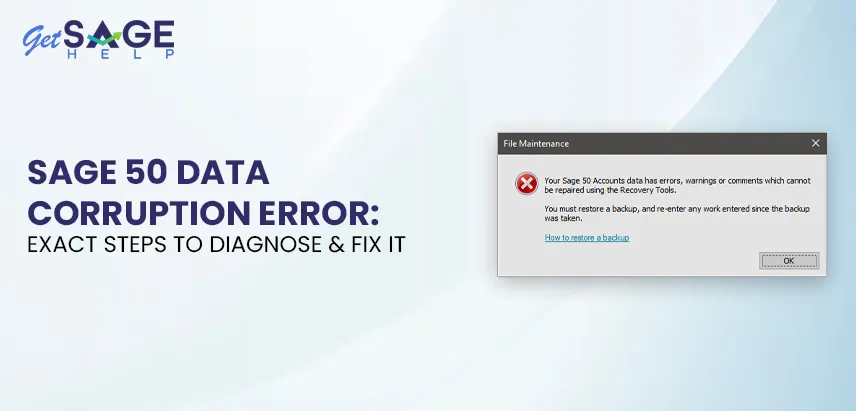
If Sage 50 warns about damaged or inconsistent company data, you’re likely looking for a fix to act on now rather than a general explanation of Sage 50 data corruption error. This guide gives the exact steps to diagnose and resolve the most common causes, in the order to try them.
Menu wording can shift slightly between Sage 50 versions and regional editions (US, Canada, UK). If a label doesn’t match exactly what you see, look for the nearest equivalent in the File or Maintenance menu. The underlying tools exist across current releases.
When Sage 50 reports data corruption, it’s telling you that something in the company file’s internal structure no longer matches what the program expects — an index is out of sync, a record was only partially written, or a file was interrupted mid-save. You might see this surface as:
None of these signs tell you the exact cause alone, so the troubleshooting sequence below starts with diagnosis before repair.
Understanding what typically causes corruption helps you avoid repeat incidents after your file is repaired.
Force-ending Sage 50 or a power loss during a save is the most frequent cause.
In multi-user setups, a dropped connection mid-transaction can leave a record half-written.
If the drive holding your company folder fills up during a save, the file can’t complete writing correctly.
Some security tools scan or lock files at the exact moment Sage 50 tries to write to them.
Older releases sometimes carry known indexing bugs that later updates specifically address.
A failing hard drive or unstable server can introduce corruption that no amount of software repair will permanently fix until the hardware itself is addressed.
There are two quick things you can try.
If Sage 50 is set up for multiple users, confirm every user has fully closed the company and exited the program, not just minimized it. A file still open elsewhere on the network blocks repair tools, and running a rebuild on an in-use file can worsen corruption.
Locate your company data folder (check File > Open Previous Company or shortcut properties to confirm the path), then copy the entire folder, not just the backup file, to a separate location like an external drive. This copy is your safety net. If a repair goes wrong, you want an untouched version to fall back on, separate from any backup restore.
If this doesn’t help, proceed to comprehensive solutions for Sage 50 data corruption error.
| Action | What It Targets | Data Risk |
| Copy the company folder | Creates a safety net before any repair | None |
| Run Verify Data / Check Data | Identifies which files or records are affected | None (read-only scan) |
| Run Rebuild Data | Re-indexes and repairs flagged files | Low, but back up first |
| Check the data path and network connection | Rules out a false corruption reading caused by connectivity | None |
| Restart the Pervasive/Actian database service | Fixes corruption caused by a stuck database engine process | None |
| Restore from the most recent clean backup | Recovers from a file the rebuild tool can’t fix | Restores to backup date |
| Repair or reinstall Sage 50 | Rules out a damaged program installation, not just the data | None to data, if done correctly |
| Rebuild from a prior period-end backup | Last resort when current-year data is unrecoverable | Loses transactions since that backup |
| Contact Sage support through official channels | Needed when internal tools can’t resolve the issue | Depends on guidance given |
Let us guide you through the troubleshooting methods for the Sage 50 data corruption error.
Follow them one by one as instructed.
This is the right starting point since it identifies the problem scope without changing anything.
Don’t skip the report details. It shows whether Fix 2 will likely resolve the issue or if you should move on to a backup restore.
Once you know which files are affected, the rebuild tool attempts an actual repair.
If the rebuild reports success but symptoms reappear after normal use, the cause is likely external (network interruption, hardware issue) rather than a one-time glitch. Address that before rebuilding again.
Corruption warnings sometimes appear because Sage 50 lost a stable connection to the company folder mid-session, not because the file is damaged. Confirm the path shown matches where your company folder actually lives.
Sage 50 relies on a background database engine (Pervasive or Actian PSQL in newer releases) to manage file access. If that service gets stuck, it can produce corruption-like symptoms even when the data file is fine.
If the service won’t restart cleanly, restart the machine and try again before more invasive fixes.
If Verify and Rebuild can’t clear the warnings, or the rebuild itself fails partway through, restoring from backup is the next step.
If corruption symptoms persist across multiple company files or after a Windows update, the issue may be with the program installation rather than a single data file.
If neither rebuild nor your recent backup resolves the issue, the corruption might have been present longer than you realized. Step back to an earlier, verified-clean backup, typically your last period-end or month-end copy.
This path requires the most manual effort, so exhaust Fixes 1 through 5 thoroughly before committing to it.
Here are recommended practices to prevent data corruption errors in Sage 50.
Sage 50 data corruption error is almost always recoverable when you follow diagnosis and repair steps in order, starting with a safe copy of your file and ending with official support if needed. The exact fix depends on what Verify Data reports, so resist jumping straight to reinstall or backup restore before reading that diagnostic carefully.
Regular backups, a stable network connection, and an up-to-date installation won’t make corruption impossible. Still, they ensure you have a clean recovery point close at hand rather than facing a long re-entry process.
Stop and address the warning immediately rather than continuing to enter transactions. Continuing can spread corruption or make rebuild less effective. Back up the current state first, then work through fixes in order.
Rebuild Data is designed to repair, not remove, but there’s always a small risk with any repair tool, so backing up first is essential. In most cases, a rebuild completes with no data loss. Skipping backup makes recovery much harder if something goes wrong.
Recurring corruption almost always points to an external cause: unstable network, failing hard drive, or an antivirus interfering with file writes. Fixing the file without addressing the root cause only delays the next occurrence. Work through the “Common Causes” section above to identify triggers.
Yes, it is often the safest path if corruption has spread to your recent backup. You’ll lose transactions entered since that older backup but regain a stable, working file. Re-entering the gap manually is tedious but more reliable than fighting a damaged file.
Not necessarily. Most cases trace back to an interrupted save or network drop rather than failing hardware. If corruption recurs across different files and other fixes fail, run a hardware diagnostic to rule out a drive issue. Catching hardware failure early prevents larger data loss later.

Prefer speaking with a human to filling out a form? call corporate office and we will connect you with a team member who can help.
 +1(877)204-4803
Available 7 Days a Week 8:00 am - 10:00 pm (EST)
Chat with an Expert